Skip to case study
Jeeves · 314e CorporationFeature design / Clinical education tooling / 2024–2025

Record it once.
Read it four ways.

A video editor built for clinical educators — and the layer model that lets a single Epic screen recording publish as a video, a tip sheet, an interactive lesson and a guided tour.

ONE SOURCE OF TRUTHFOUR OUTPUTS
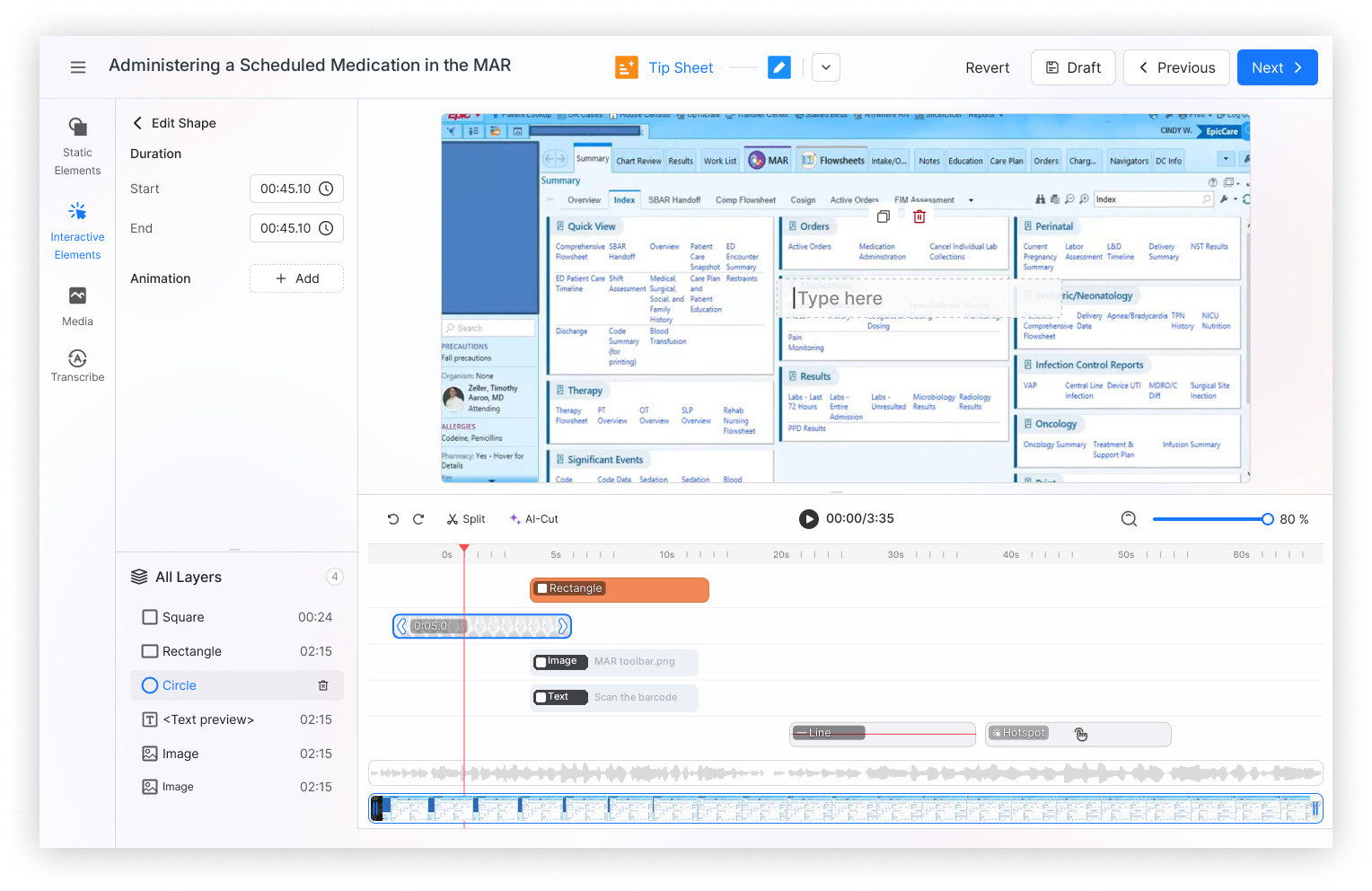
The Jeeves editor: an Epic screen recording on the canvas, a layer list on the left, and a timeline of timed annotation tracks below
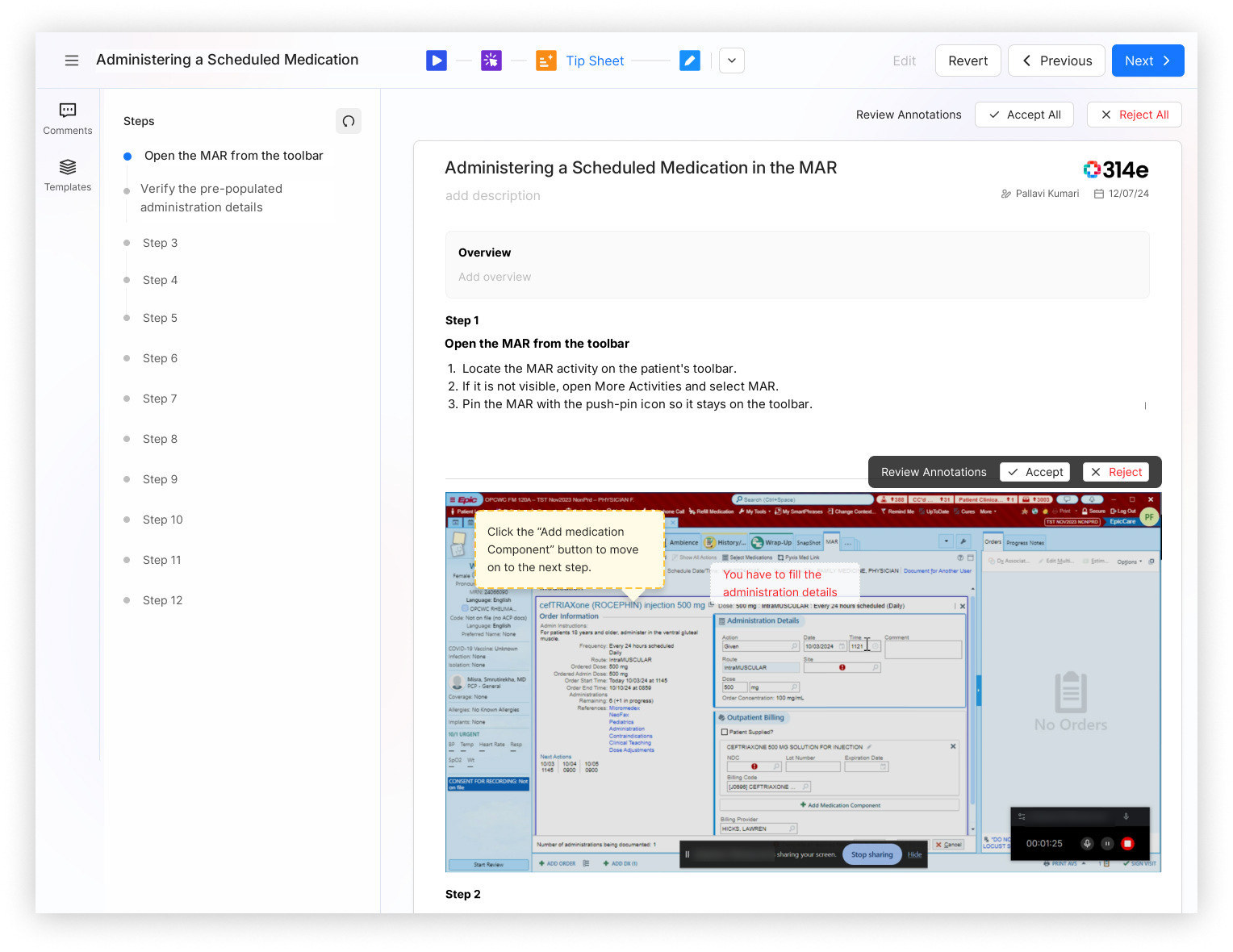
Tip sheet The same recording rendered as a step-by-step tip sheet awaiting annotation review
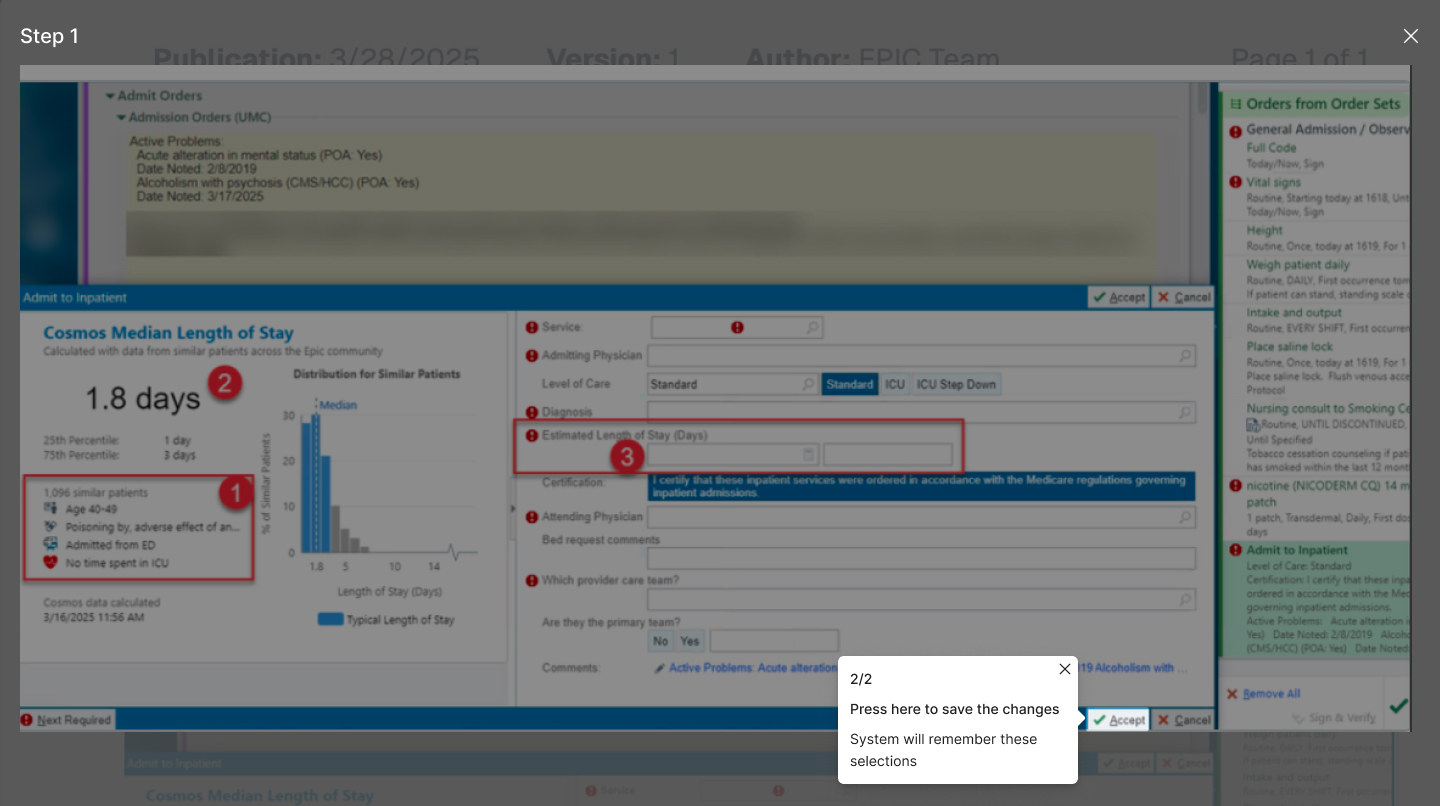
Guided tour The same steps replayed as a guided tour with a spotlight and a tooltip over the Epic screen
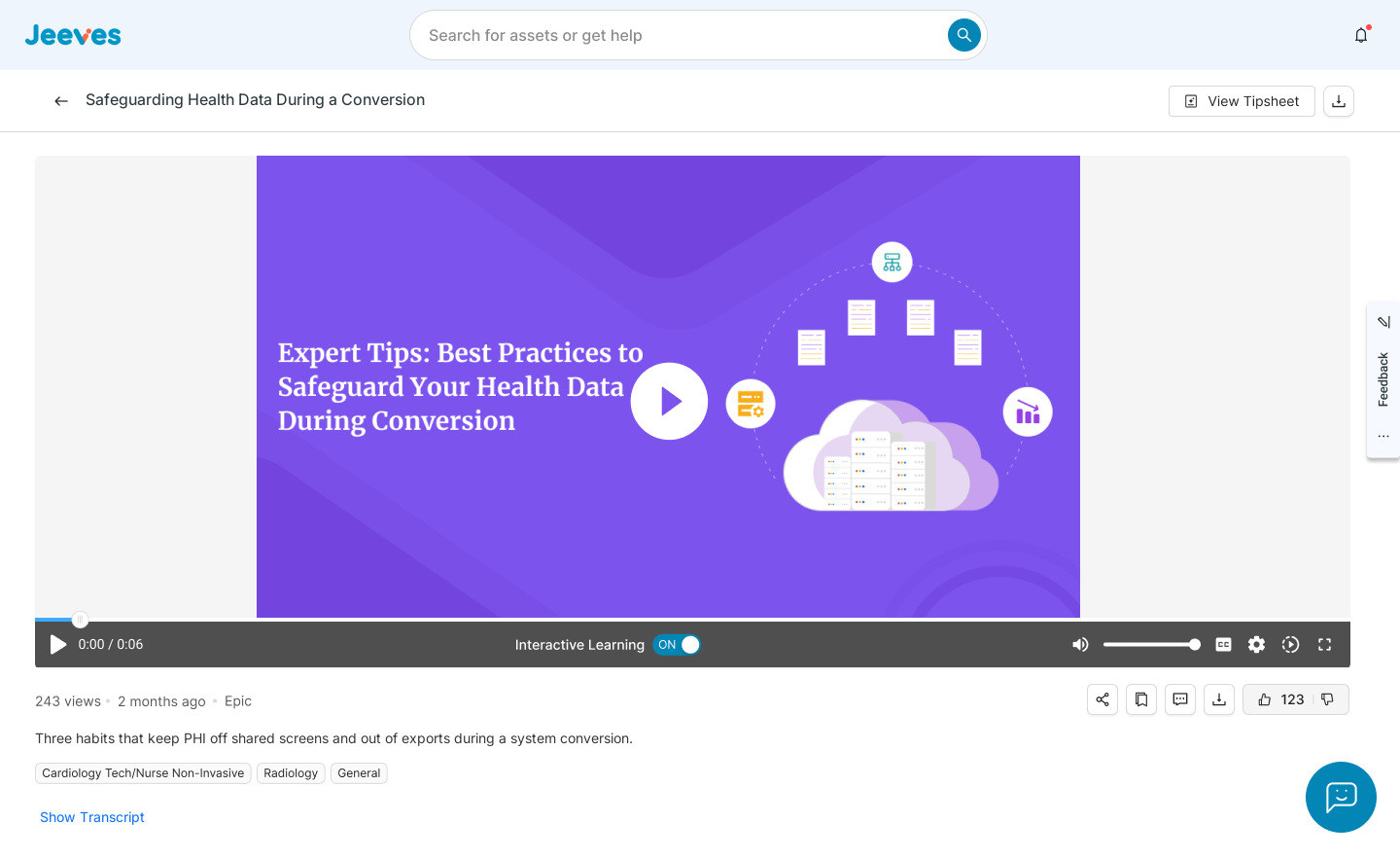
Player The learner's video player with an Interactive Learning toggle in the control bar

Training that lives inside the EHR, at the moment the task is actually in front of you.

CASE STUDY · APPROX. 12 MIN READ

Screens are from the working product. Demonstration strings left in the build have been replaced with representative clinical content, and one customer's identifying marks removed. Reported outcomes are from the KLAS Spotlight Report 2025 and the client's own reporting, not from a study we ran.

01 / Understanding the work

Nobody books a training session
for the thing they forget at 2 a.m.

An EHR is the most-used and least-forgiving piece of software in a hospital. Staff are trained on it once, at induction, and then meet it every shift for the rest of their career.

Jeeves sits inside that gap: a just-in-time training platform that opens within Epic, so a nurse can find the answer to a workflow question without leaving the chart. The learner-side problem is well understood. The one we were asked into was on the other side of the wall — the people who have to make the content.

A clinical informaticist supporting a hospital network is not a media team. They are one or two people with a screen recorder, and they answer to every upgrade, every policy change and every department that wants its own version. When a workflow changes, the same piece of knowledge has to be produced three or four times over: record the video, write the tip sheet, rebuild the walkthrough, set the quiz.

Those artefacts start identical and immediately begin to drift. The video gets re-recorded after an Epic upgrade; the tip sheet does not. Six months later the two disagree, and the learner has no way to tell which one is current.
Where the pressure showsCONTENT ADMIN / ASSET LIBRARY
Every row here is a workflow someone has to keep true. Note the format column: the same subject exists as a 2:23 video and a 12-page document, as 12 steps, or as all three. Before this work, each of those was authored separately — which is why the library grows faster than any team can maintain it.

02 / The decision it rests on

An annotation is an object,
not a pixel.

Every video editor ever built answers one question the same way: when you draw a box on a frame, where does the box go? It goes into the pixels. You render, and the box is now part of the picture, indistinguishable from the screen it sits on.

That answer is cheaper to build and cheaper to play. It is also the reason a training video can only ever be a training video. We took the other answer, and it is the single decision the rest of this case study depends on.

Not taken

Burn the annotation into the frame

The box, the callout, the blur and the arrow are composited into the exported video. What the learner receives is one flat file.

01 Record the workflow
02 Annotate and render
03 Screenshot it again for the tip sheet
04 Re-annotate every screenshot by hand
05 Rebuild the same steps as a tour
4 artefacts authored separately, drifting apart from the day they ship.
Taken

Keep the annotation as a timed object

Each mark is a record — a type, a position, a payload, a start and an end — held above the video rather than inside it, and drawn at play time.

01 Record the workflow
02 Annotate once, on a timeline
03 Every other format reads the same graph
04 Review what the generator proposed
05 Publish four surfaces from one source
1 source edited in one place; a correction lands everywhere at once.

Drag the playhead — one layer graph, three readings

00:00 / 03:35
Reading 1 — Video overlay
Check Route and Site against the order.

Drawn over the frame at play time. The learner can switch it off.

Reading 2 — Tip sheet step

Step 1

Open the MAR from the toolbar

Locate the MAR activity on the patient's toolbar. If it is not visible, open More Activities and select MAR.

The same object, printed: its frame becomes the screenshot, its payload becomes the caption.

Reading 3 — Guided tour stop
Stop 1 of 4 Open the MAR from the toolbar.

The same object, walked: position becomes the spotlight, payload becomes the tooltip.

Three panes, one data structure. Nothing here is re-authored — the box, the blur, the callout and the hotspot are the same four records, read three different ways. A reconstruction of the model, built for this page.

The proof is in the player

There is a small switch in the learner's control bar labelled Interactive Learning. Turn it off and the boxes, callouts and questions disappear; the underlying screen recording keeps playing. Turn it on and they come back.

That switch is only possible because the annotations were never part of the picture. It is a modest control, and it is the most honest evidence that the architecture underneath is what this case study says it is.

Video

The recording with its layers drawn over it, scrubbable and captioned.

For watching it done

Interactive lesson

The same video, but it stops and asks — knowledge checks, hotspots, typed responses.

For proving you got it

Tip sheet

Numbered steps, annotated screenshots, printable and pinnable at the workstation.

For scanning at speed

Guided tour

The steps replayed as a spotlight and a tooltip, one stop at a time.

For doing it alongside

03 / The authoring tool

A video editor for people who have
never opened a video editor.

The person using this is a clinical informaticist with forty minutes between meetings. They know Epic completely and Premiere not at all — and the thing they are making has to be correct, because a nurse will follow it.

So the editor could not be organised the way editors are organised. Tracks, keyframes and compositing modes are the vocabulary of the craft, not of the job. We grouped the tools by what they do to the learner instead: things that mark the screen, things that stop and ask, things that add media, and things that handle the words.

One property is shared by every object in all four groups: duration. Start and end. That single row in the properties panel is what makes an annotation addressable later — it is how the tip sheet generator knows which frame a callout belongs to, and how the tour knows what order the stops go in.

The tool rail, grouped by effect

FOUR GROUPS / ONE SHARED PROPERTY

Static Elements

  • Shapes — rectangle, circle, square
  • Callout — a pointer and a sentence
  • Text and Arrow
  • Blur — obscure a region
  • Highlight and Spotlight

Marks the screen. Never interrupts.

Interactive Elements

  • Knowledge Check — pause and ask
  • Hotspot — click to continue
  • Input Response — type it back

Stops the video. Requires an answer before it resumes.

Media

  • Images from the shared library
  • Image editor — crop, redact, annotate
  • AI Steps Creator — number the steps

Brings a still into the timeline as a layer of its own.

Transcribe

  • Auto transcript, time-aligned
  • AI narration in place of a voiceover
  • Captions pushed to the player

Supplies the prose that the tip sheet and the tour reuse.

Selecting an objectEDIT SHAPE
Select a mark on the canvas and its record opens: fill, border, corner, stroke — and duration, which is the part the other three formats will read.
Saying something about itCALLOUT
A callout carries the sentence a learner needs at that moment. In the tip sheet the same sentence becomes body copy; in the tour it becomes the tooltip.
The graph, laid flatTIMELINE / ALL LAYERS
Every object gets its own track and its own span. This is the structure the tip sheet and the tour are generated from — and the reason the “All Layers” list on the left is a first-class surface rather than a debugging aid. AI-Cut, next to Split in the toolbar, proposes the cuts, so an educator starts from segments rather than an unbroken timeline.

Blur is a clinical control

A screen recording of a live EHR test environment will contain names, MRNs and dates of birth. In a normal editor, blur is a stylistic choice. Here it is the difference between a publishable asset and a disclosure.

Keeping blur as a layer rather than a burned-in effect had a specific consequence we designed for: it can be re-verified. Every re-render walks the blur layers again, and the processing screen says so in as many words. An educator who trims the video later does not silently lose a redaction.

The image editor carries the same tools for stills, plus an AI Steps Creator that reads the text on a screenshot and places numbered step markers on it — a job that otherwise takes an hour of careful clicking per tip sheet.

Stills, same rulesIMAGE EDITOR / AI STEPS CREATOR
Annotate, Blur, Crop — and numbered markers placed automatically from the text the tool reads on the screenshot.
What the render actually didPROCESSING / FEATURES USED
Rendering is slow and mostly invisible, so it reports itself: which step it is on, which features this asset uses, and that the job can be resumed if it is interrupted.
Getting the raw material inBULK UPLOAD
Educators record in batches, so upload is per-file: one failure does not cost the session.
Before anyone touches itFIRST PASS
Optimising, AI captions, noise removal and a thumbnail all run on arrival, so the editor opens on a file that already has a transcript to work from.

04 / Teaching inside the frame

The pause is
the lesson.

A video that plays to the end tells you nothing about whether it landed. Three tools in the Interactive group exist to interrupt that: a knowledge check that stops and asks, a hotspot that requires the learner to find the control themselves, and an input response that makes them type the value back.

Because these are layers with a start time, they can be placed exactly where the difficulty is — not bolted on at the end as a quiz. The question about the administration time appears at the moment the administration time is on screen, and it overlays the paused frame rather than replacing it, so the screen being asked about stays visible behind the answer.

Authoring questions is the slowest part of the job, so the transcript is put to work: the platform proposes questions drawn from what was actually said and shown, and the educator selects, edits or discards. Nothing is inserted without someone choosing it.

Placing the interruptionINTERACTIVE ELEMENTS
Three ways to stop the video, sitting in the same rail as the shapes — because to the author they are the same kind of act: place something at a time.
Drafted, then chosenKNOWLEDGE CHECK / AI SUGGESTIONS
Suggestions arrive pre-selected, with a checkbox each and a single Insert — cheap to accept, and cheap to strike out the two that miss. The dialog still opens by offering both routes: “add questions manually, or let our Jeeves AI generate them for you.”
What it looks like from the other sideLEARNER / THE PLAYER
The Interactive Learning switch in the control bar is the layer model showing through to the learner: on, the marks and questions are drawn over the recording; off, the same file plays clean. Beside it in the header sits View Tipsheet — the second format, one click from the first.

05 / The second reading

The tip sheet is not exported.
It is re-read.

When an educator switches the format selector at the top of the editor from video to tip sheet, nothing is converted. The generator walks the same layer graph and answers three questions per step: which frame, which marks, and which words.

The frame comes from the step boundary. The marks come from the annotations alive at that timestamp — the box, the callout, the blur — redrawn onto the still. The words come from the transcript segment that spans it. A twelve-step tip sheet with twelve annotated screenshots is the same twelve records the video already had.

Filling in as it goesGENERATING ANNOTATION
The step rail resolves progressively — named steps at the top, placeholders below. Generation takes minutes, and a progress bar alone would read as a hang; a rail that fills in reads as work.
Nothing publishes unreviewedREVIEW ANNOTATIONS
Accept and Reject exist twice: once per annotation, once for the document. The bulk control is there because a good generation should be cheap to approve — but the per-item control is the one that makes the bulk control safe to offer.
Rule 01

Show the seam

Generated content is visibly generated until a person accepts it. An educator should never have to guess which sentence they wrote and which one arrived.

Rule 02

Make refusal cheap

Reject is the same size as Accept, sits next to it, and needs no confirmation. If saying no is expensive, approval stops meaning anything.

Rule 03

Fail out loud

Progress is reported per step, and an interrupted job says it can be resumed. Silence during a long automated task is read as breakage, and breakage is read as untrustworthy.

Where it landsMETADATA / PUBLISHING
Metadata is authored once for the source, so all four formats inherit the same library, author and expiry — and the thumbnail is chosen from the recording's own frames rather than uploaded. That expiry field matters more than it looks: content in a hospital has a shelf life, and an out-of-date tip sheet is worse than a missing one.

06 / The third reading

Same steps.
Now stand next to me.

A video shows you. A tip sheet tells you. A guided tour walks you through, one stop at a time, with everything but the thing in question dimmed.

The tour is built from the tip sheet, which was built from the video — three formats deep, and still no re-authoring. Each step contributes its frame and its position; the tour draws a spotlight at that position and hangs the step's text beside it.

Two things needed designing that the other formats did not need. The first is orientation: a stop count and a step rail, because unlike a video there is no scrub bar telling you how much is left. The second is escape — every stop can be left, and the learner returns to the document they came from rather than to nothing.

A stop, with its railGUIDED TOUR / STEP 1 OF 3
The rail on the right lists the stops as short imperatives — Verify the patient's basic information, Using a CMLOS of 1.8 days, Estimated length of stay — and the numbered markers on the screen correspond to them. The learner always knows which of the three they are on.
Dim everything elseSPOTLIGHT
Scrim plus cut-out. The surrounding chart stays legible enough to orient by, dim enough to stop competing.
Say the one thingTOOLTIP / 2 OF 2
The tooltip carries the count, the instruction, and the consequence — the system will remember these selections — which is the sentence a nurse actually needed.
Deep in a real workflowMAR / ADMINISTRATION DETAILS
The stops go where the workflow goes — here into the administration form for a cefTRIAXone order, with red markers on the fields that block filing. A capture can follow a nurse to that level of specificity; a written procedure rarely does.

07 / On the floor

Four doors into
the same piece of knowledge.

All of the authoring work above is only worth its cost if it changes what a nurse experiences at a workstation, mid-shift, with a patient waiting.

What it changes is choice. The same asset can be watched, scanned, practised or walked — and the learner picks by situation rather than by whatever the educator had time to make. Two minutes before a med pass, the tip sheet. Learning the workflow for the first time, the tour. Being assessed on it, the interactive lesson.

It also changes what search can return. Because the transcript, the step titles and the annotation text all belong to one asset, a question typed in the words a nurse would actually use resolves to a specific step of a specific workflow — not to a forty-minute course that mentions it once.

Door 01 — Ask

Search that answers a question, not a keyword

Results carry the format on the card, so the learner chooses how to receive the answer at the same moment they find it.

Door 02 — Watch

Video and tip sheet, side by side

The document scrolls with the video, so a learner can read ahead or drop back without losing their place in either.

Door 03 — Read, then do

A document with a tour inside it

Instruction widget launches the guided tour from the page the learner is already reading — the document and the walkthrough are the same object.

Door 04 — Be assigned

Home, when someone else set the agenda

Assignments in progress, what to learn next, what colleagues are learning — the same library, sorted by obligation rather than by curiosity.

08 / Outcome & reflection

The saving is not the video.
It is everything after the video.

Recording a workflow was never the expensive part. The expensive part was producing the same knowledge three more times, and then keeping four drifting copies of it honest through every upgrade.

Treating an annotation as an object rather than a pixel is what collapsed that. It is an unglamorous decision — no one sees it, and its most visible artefact is a small toggle in a control bar — but every feature in this case study is downstream of it.

In the KLAS Spotlight Report 2025, the platform scored A+ on ease of use and A on value and outcomes, with organisations reporting measurable value within the first quarter of deployment. These are the client's and KLAS's figures, from operational reporting rather than a study of these features in isolation.

Bring forward

Decide the data model before the interface.

The tip sheet, the tour and the interactive lesson did not need three feature designs. They needed one shared object with a start and an end. Getting that right early made three later features cheap, and would have made them impossible if we had got it wrong.

Keep challenging

Automation is a draft, and drafts must look like drafts.

Generated annotations, questions and narration all pass through a review gate, and that gate cost real screen space and real clicks. It is worth it. In a clinical setting a single wrong automated output does not lose you a feature — it loses you permission to automate anything.

Develop next

The formats still do not know when they are stale.

One source means a correction propagates. It does not yet mean the system notices that Epic changed underneath a recording made eight months ago. Detecting drift between a captured workflow and the live one is the problem worth solving next.

Product screen

Scroll to inspect the screen at full size.